Showing posts with label ContactsBook. Show all posts

Thursday, September 6, 2012

ContactsBook


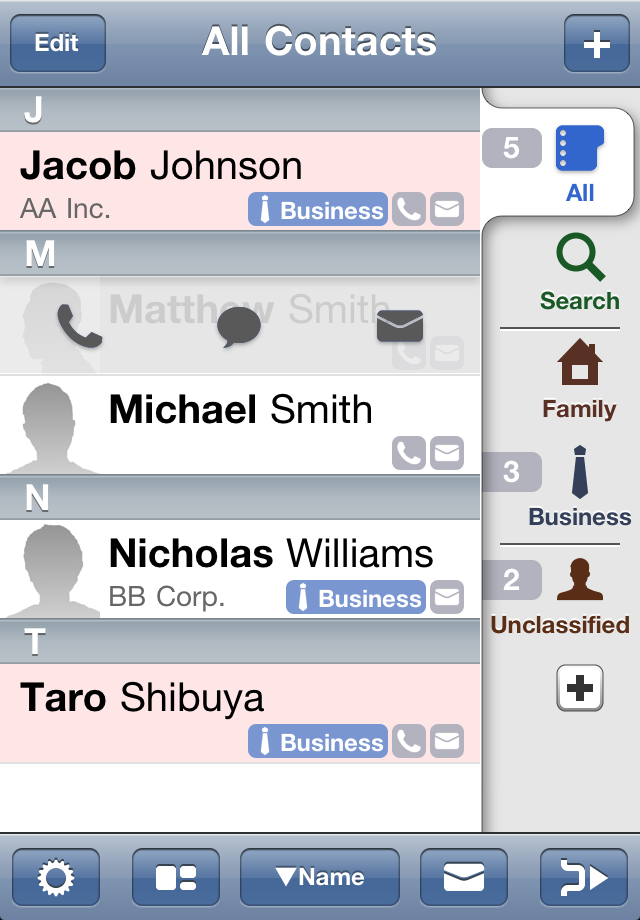
Contactsbook is an application that can group your contacts together and send group e-mails. You can organize your contacts using intuitive drag and drop tabs.

1. To create a group

When you start the application, there are only three tabs, "All," "Search," and "Unclassified." To create a group, please push the "+" button under these tabs.


3. Sending e-mail

You can send an email to members of a group at the same time. Once set, the contact information is recorded for each group. If you send an e-mail address again to the same group, it will use the previous setting unless you change it.


  • Feb 20, 2011 version 1.0
  • Feb 24, 2011 version 1.1
  • Mar 5, 2011 version 1.2
  • Jun 14, 2011 version 1.3

Thursday, July 28, 2011

ContactsBook: The freedom to design new group icons

Icons that are drawn with an iPhone app can be used if none of the default icons are sufficient. You can any drawing apps in the AppStore. I explain how to draw using my app "sketcher" ( iTunesStore ).

1. Drawing an icon

Start "Sketcher" and create a new sketch.


Draw a picture in black on a white background. Set the color to black. Please use a somewhat thicker pen. The icon may look thin and collapse because they reduce the size if you use a thin pen. For iPhone 4 or later, use a 50 pixel wide pen. For iPhone 3 or older, a 25 pixel wide pen is good. 


Draw a picture. When you draw detail, pinch to zoom up.


When you finish drawing, tap the action button and select "Save to CameraRoll".


2. ContactsBook: Adding the new group

In the Edit group screen, tap the Icon Image. Choose the “Select From Library” button.

Select the picture you saved earlier in the camera. Place the picture so it fills as much of the frame as possible.


Tab then reflect the icon you created.

Wednesday, July 27, 2011

ContactBook: Using a local group

In order to group your contacts synching with the Exchange or Google Sync, "Local Group" should be used. Contacts synching with the Exchange or Google Sync can not be grouped in normal groups.
Local groups are enabled only in ContactBook. They do not appear when you open the standard "Contacts".

1. Adding to a group of regular contacts with Exchange (error)

The following contacts are synced with a Google Contacts account in Exchange.


When you try to add it to a normal group, you get an error message. 


2. To use a local group

When you create a group, tap the "Local Group" switch to turn on local groups.


The local group can be added to contacts with Google Sync or Exchange now.


Please note, local groups can only be set when creating a group. Local groups cannot be changed in Group Settings after creating a group.

ContactsBook: Swiping to send an email or make a phone call

By swiping left or right on a contact, you can send an e-mail or make a phone call. This feature was added in version 1.3.

Swipe

Swiping to the left or right on a contact will bring up three buttons; phone, SMS / MMS, and e-mail (only mail in the iPad and iPod Touch).


When you tap a button, you may get a choice between a phone number or an e-mail address.


ContactsBook: Attaching photos to a group e-mail

Use copy and paste to attach your photos to a group e-mail.

Copy photos

Open the "Photos" app and choose the photo you want to attach. Press and hold a photo then select "Copy."


E-mail and paste it into group

Create a group e-mail. 

Press and hold the body of the email to access the 'Paste' menu. Photo is now attached to this email.


ContactBook: Sending an e-mail without creating a group

In addition to sending e-mail to group members, version 1.3 added a new function to send mail at the same time in the edit mode. With it, you can send group e-mails without creating a group tab.

Sending e-mail at the same time using the edit mode

Tap "Edit" and check the contacts you want to send an e-mail to.


Tap the Mail button on the bottom left. After selecting the e-mail addresses on the next screen, please go to the email body by tapping the Edit button on the top right. 

ContactsBook: Moving the tabs All / Search / Uncategorized to the bottom

Normally, the "All," "Search," and "Unclassified" tabs are at the top, but you can move them under the group tabs.
This feature was added in version 1.2.

Moving the tabs All / Search / Uncategorized to the bottom

Press and hold the tab to open the "Edit Tab" window. Change the "Place Tab At Bottom" switch to on.


Now that tab will be at the bottom of the groups.


ContactsBook: Hide Tabs

"Search," "Unclassified," and Group tabs can be set to not display the tab.
This feature was added in version 1.2.

Hiding a tab

Press and hold the tab to open the "Edit Group" screen. Change the "Hide Tab" to switch on.


When you are finished editing the group, the tab will be hidden.


To show a hidden tab

To see the hidden tab again, tap the Settings button on the lower left and choose "Groups" ("Search" and "Unclassified" are in the "Default Tabs" menu).


This displays a list of groups. Groups that are hidden are grayed out. Select the group you want to see again and turn off the "Hide Tab" switch.


Tab will be displayed again.